 KORT
KORTProfile, account and friends
You can play without signing up. But signing in with Apple or Telegram keeps your cups on any phone and unlocks friends, coins and the shop. Here's how it all works.
Guest and account#
When you first launch the game, you're a guest. A guest has a nickname, an avatar, their own 7-digit ID and cups, and can be found by ID and added as a friend. But a guest profile is tied to this phone: it can't be moved to another one.
To sign in: My profile → the “Profile” tab → the “Account” block.
| Sign-in method | iPhone | Android |
|---|---|---|
| Sign in with Apple | Yes | No |
| Log in with Telegram | Yes | Yes |
Only after signing in:
- your cups and progress are saved and available on any phone;
- you can send and accept friend requests and invite friends to a table;
- you get coins and the shop: you can buy items and throw gifts at the table;
- since version 1.2.6, your own avatar from a selfie and coins for ads.
You can link both sign-in methods to one account: sign in with one, then tap “Link” next to the other in the “Account” block (Apple is iPhone only). If that Apple ID or Telegram is already linked to another KORT account, the game shows “Already linked”. You can't unlink a sign-in method or merge two accounts. If signing in doesn't work, see the “Help” section.
New phone#
Just sign in on the new phone the same way, with Apple or Telegram. Your cups, nickname, avatar, friends, coins, purchased items and your own avatars will load from the account.
Guest progress without signing in can't be moved to another phone.
Signing in when the phone already has cups#
If you played as a guest and then sign in to an existing account, and the phone has ranked rounds from this season, the game asks: “Sign in? Account has N cups. This phone has M cups. They will be lost if you sign in.” After “Sign in”, the phone's cups for this season are lost, and the account's cups stay. Friend requests the guest received move to the account.
If there's no account yet, it's created from your guest profile, and your cups stay.
Signing out#
Your cups, friends and coins stay in the account: sign in again to get back to them. The phone starts a new guest profile with 1,000 cups. So if you suddenly have 1,000 cups after signing out, just sign back in.
Nickname, ID and avatar#
- Nickname: you change it in your profile, and it's saved right away. Since version 1.2.6, up to 10 characters. Nicknames aren't unique: different players can have the same one. On the leaderboard, a new nickname appears after your next ranked game.
- ID: 7 digits, unique to each player. It's never reused, even after an account is deleted. You can copy it by tapping “ID …” on the “Profile” tab or Copy on the “Friends” tab. An ID is the most reliable way to find a friend.
- Avatar: tap it in your profile and pick one of the 40 built-in avatars. Since version 1.2.6, you can also have your own avatar drawn from a selfie there.
Friends#
How to find someone#
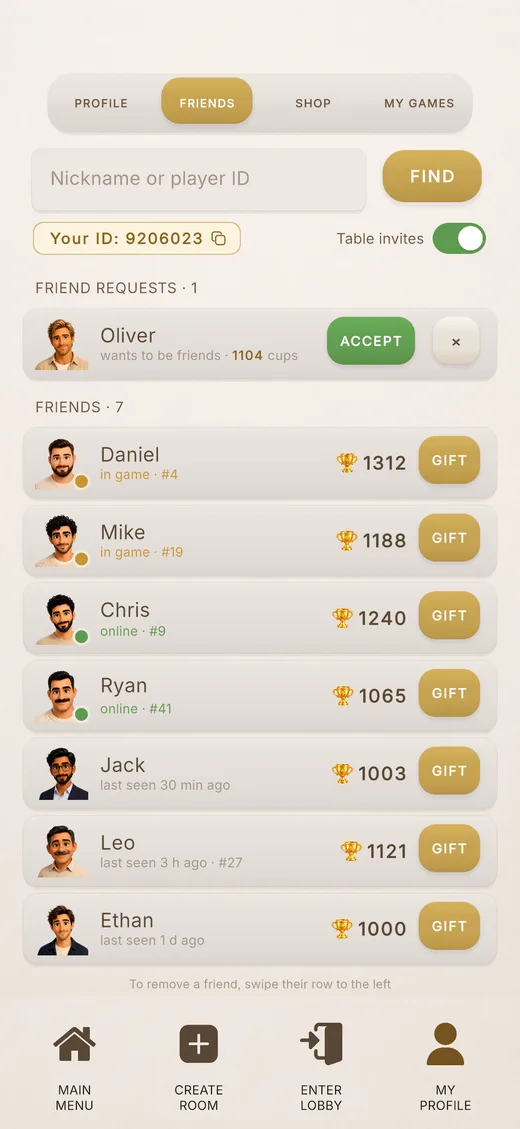
On the “Friends” tab, type a player's nickname or ID. The search starts by itself.
- By ID you can find any player. You can type “1234567”, “ID 1234567” or “#1234567”.
- By nickname: by the start of the nickname, at least 2 letters, case doesn't matter. Guests can be found by nickname only if they played this season or last season.
- You can also tap a player at the table or on the leaderboard: their card opens with an Add friend button.
Requests#
- You can send a request after signing in. If you both tapped “Add”, you're friends right away.
- A guest can see incoming requests. If they tap Accept, the game offers to sign in, and after signing in the request is accepted automatically.
- You can decline a request without signing in. The sender won't find out: for them, the request just stays “sent”.
- You can cancel your own request.
- Limits: up to 200 friends, up to 50 pending requests and up to 40 new requests a day.
- A red dot with a number on the “My profile” button and on the “Friends” tab means new friend requests.
Statuses#
- “in game”: the friend is playing a match or searching for a ranked game;
- “online”: the friend is in the menu, in Practice or in a room before the game starts;
- otherwise, “last seen N min / h / d ago” or “not seen for a while”.
Next to each friend you can see their cups and season rank. To remove a friend, swipe their row to the left and tap Remove.
Inviting a friend to a table#
In the room's waiting room, tap an empty seat → Invite friend → Invite next to the friend you want. Anyone at the table can invite, not just the owner.
- A friend who is online gets a window “{nickname} invites you to a table” with Play and Decline buttons. “Play” seats them at the table right away, no code needed.
- A friend who is offline gets a phone notification, if they allowed notifications.
- You can't invite a friend who is in game. A friend in Practice or in a room before the game starts can be invited.
- You can't invite friends to a ranked game: it has its own matchmaking.
- If all four seats are taken, your friend joins a private room as a spectator (while there are spectator seats), but can't join a public one.
- At the bottom of the window there's Send a link: it sends an invite with the room name and code to any messenger.
So you don't get invited too often: you can invite the same friend once every 3 minutes. After “Decline”, that friend can't invite you for 15 minutes. The “Don't invite me for an hour” link turns off invites from everyone for an hour. And the Table invites switch on the “Friends” tab turns them off completely. If your friend doesn't get the invite, the reasons are in the “Help” section.
My games#
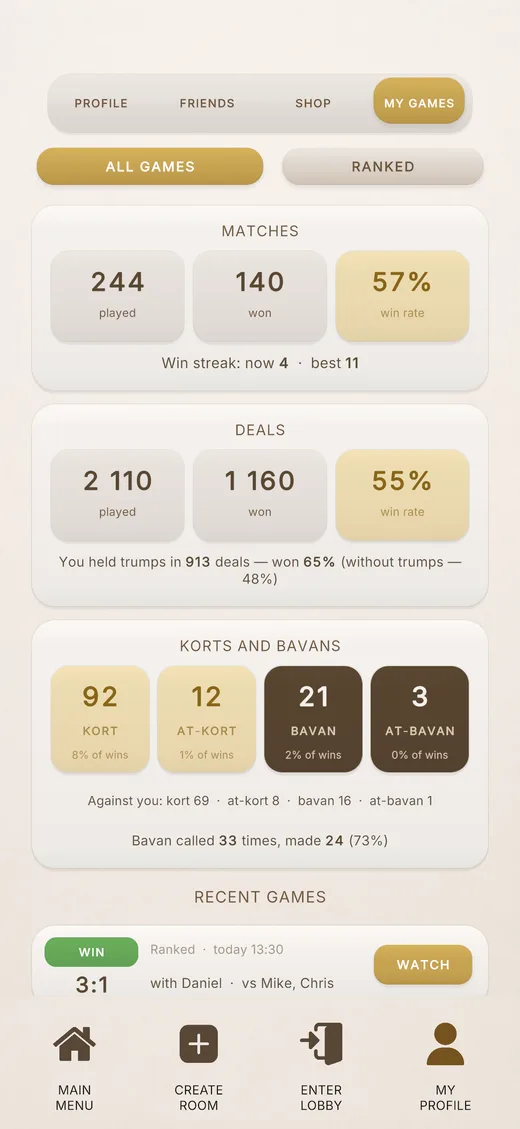
Since version 1.2.6, your profile has a My games tab with your personal stats for online games over all time. The switch at the top: “All games” or only “Ranked”.
- Matches: played, won, win rate, current and best win streak. Only finished matches count, and a win counts if you were at the table at the end.
- Deals (rounds): played, won, win rate. Here you can also see how often you win with and without the trump.
- Korts and Bavans: how many Korts, At-korts, Bavans and At-bavans you made, how many were made against you and how many times Bavan succeeded.
- Recent games: up to 10 online matches from the last 30 days: result, score, mode, time, who you played with and against.
Watching a game#
The Watch button opens a replay of the match: the table looks just as it does in the game, all four players' cards are face up, and you can step through it move by move, forward and back. The replay marks Sar and Trop declarations, redeals, Bavan decisions, bot moves and players who left. You can start from any round via the menu.
- Replays only work in landscape: the screen rotates by itself.
- Only those who sat at that table can see the replay. It's kept for 30 days.
Language#
The game is available in Russian, English and Turkish. The language is picked automatically from your phone's language, and you can change it in your profile, in the “Language” row.
Notifications#
Your phone gets notifications about table invites, friend requests, new friends and coin gifts. The game asks for permission not right away, but when you first have friends or requests. If you said no, you can turn notifications on only in your phone settings. Tapping an invite takes you straight to the table.
Deleting your account#
“My profile” → the “Profile” tab → the “Account” block → Delete account. These are deleted forever:
- your account, cups from all seasons and game history;
- friends, requests and invites;
- all coins, purchased items, gifts and your own avatars.
Deletion can't be undone. Your ID number is never given to anyone else after deletion. More on the account deletion page.