 KORT
Online play, rooms and voice chat
In KORT you can play with real people in three ways: in a ranked game against random opponents, in a public room, or in a private room with friends using a code. Here's everything about rooms, spectators, voice chat, reports and what to do if your connection drops. If something isn't working, check the “Help” section.
Game modes#
| Mode | Who you play with | Match | Cups |
|---|---|---|---|
| Ranked game | Random players online, bots fill empty seats | to 3 wins | Yes |
| Public room | Anyone who joins from the lobby | to 7 wins | No |
| Private room | Those who know the code or got an invite | to 7 wins | No |
| Practice | Three bots, no internet needed | to 7 wins | No |
Ranked games have their own section, “Ranked games and cups”. Below is everything about rooms.
Your own room#
Tap Create room and choose which room to create:
- Public: everyone sees it in the lobby, and anyone can join.
- Private: it has a lock in the lobby, and you can only join with a 4-digit code. The code is shown in the waiting room. Friends can also join without the code if you send them an invite.
The room gets its name automatically: a random city and a number, for example “Chicago #284”. If all tables are taken, the game says “No free tables”: try again a bit later.
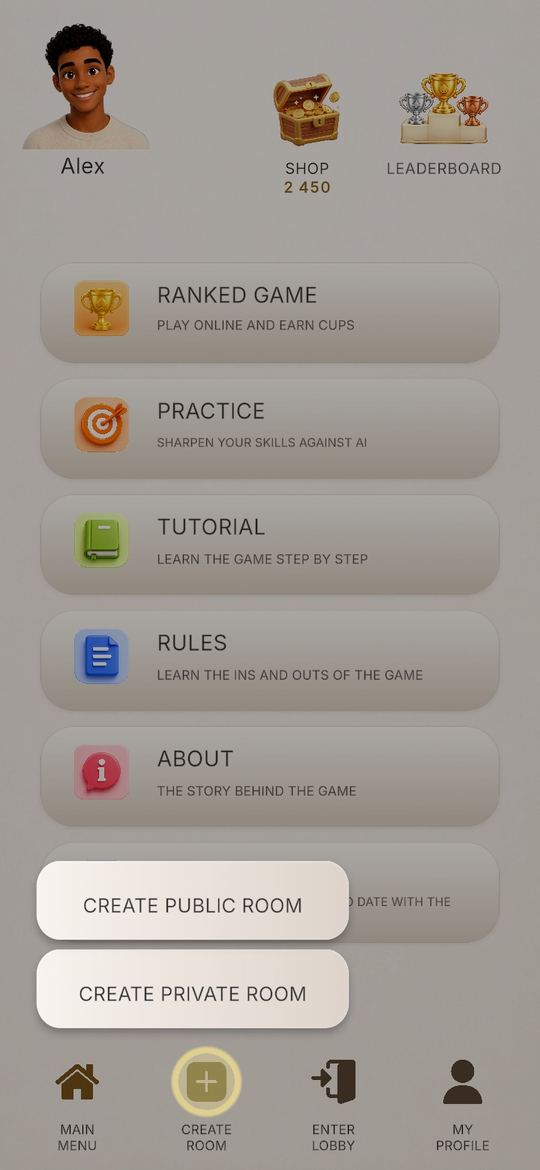
- Tap “Create room” and choose public or private.
- You're at the table and you're the owner. The room is named after a random city with a number; a private room also shows its code.
- Tap a free seat to move there, invite a friend or add a bot.
- Only the owner can add bots, and no more than two.
- Players join from the lobby, with the code or by invitation.
- When all 4 seats are taken, tap “Start” and the match begins.
Waiting room#
Before the match starts, tap a seat at the table:
- Move here: take this seat;
- Invite friend: on an empty seat, invite a friend to the table (how it works);
- Add bot or Remove bot: only for the room owner;
- Move to spectators: in a private room.
- The owner is the player who created the room. Only they see the Start button, and it works when all 4 seats are taken, by people or bots.
- No more than two bots: there must be at least two live players at the table. All bots in online games play at Hard level.
- If the owner leaves the waiting room, another player at the table becomes the owner after 20 seconds.
- During the match, the seat menu doesn't open.
Lobby#
The Enter lobby button opens the list of rooms. You can search by name, filter “All / Public / Private” and sort by name or number of players. Each row shows the name, how many players are at the table and the room type.
- To join a private room, tap it and enter the 4-digit code. If you get it wrong, the game says “Wrong code”.
- Rooms where the match has started disappear from the lobby: new players can't join them.
- The exception is your own table. If you left in the middle of a match, it's shown with the label “Your table — rejoin” and opens without a code.
- Other players' ranked tables aren't shown in the lobby. Your own ranked match in progress is shown there too, as a “Your table — rejoin” row.
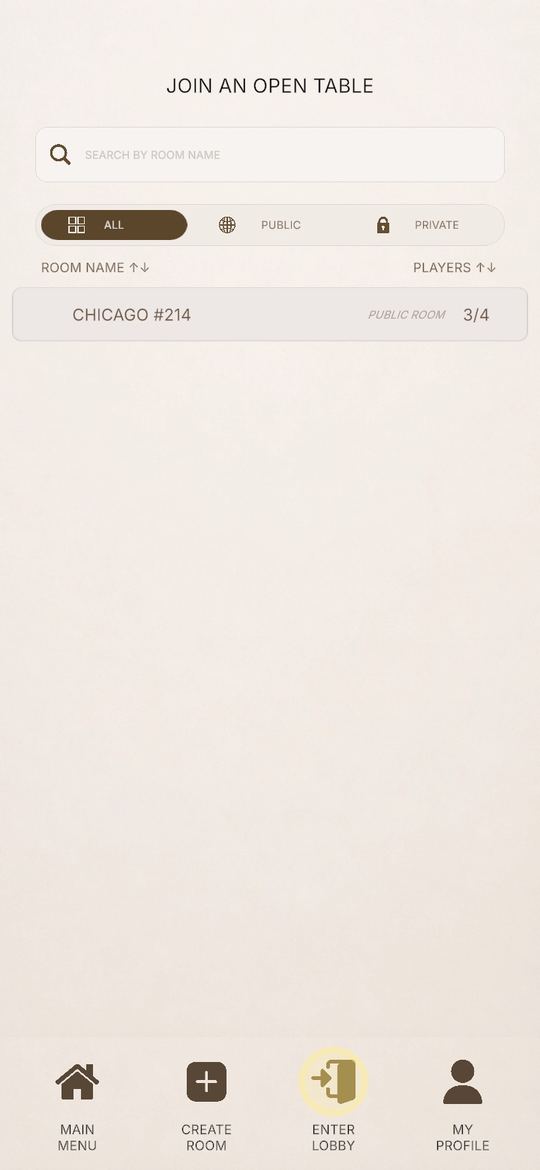
- Tap “Enter lobby” to open the list of rooms.
- Each row shows the room name, its type and how many players are at the table. There's a search box and a filter.
- Tap a public room to take a free seat.
- You're at the table. The room owner starts the match once all 4 seats are taken.
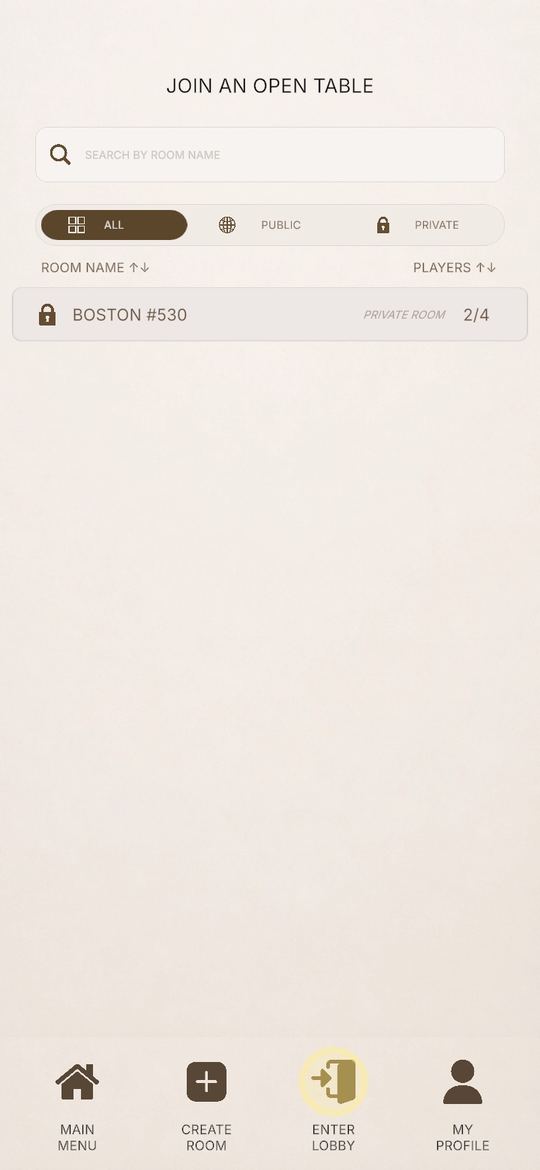
- “Enter lobby”. A private room has a lock in the list.
- Tap it and the game asks for the code.
- Enter the 4-digit code and tap “Join”. The code is shown in the middle of the table in the waiting room — the owner shares it.
- You're at the table.
Spectators#
A private room can have up to two spectators in addition to the four players. A public room has no spectator seats: if it's full, you can't join.
- Spectators see the whole game (the trump, the score, every move) but not the cards in the players' hands.
- Spectators hear the voice chat and can speak.
- While there are spectators at the table, the match doesn't end. Every time a team reaches 2 wins, players swap seats, and the score starts over.
| Number of spectators | Who becomes a spectator after 2 wins |
|---|---|
| One | One player from the losing team: if the losers held the trump in the last round, the one who held it; if the winners held it, the losing player seated just before the trump holder in turn order |
| Two | Both players of the losing team, and the spectators take their seats |
Voice chat#
Each online table has its own voice channel, with the players and spectators of that table.
- The mic is off by default. You turn it on with the mic button, and in rooms the game then remembers whether it's on or off.
- In a ranked game, the mic turns off by itself in every new match, since you're playing with strangers. While the player search is on, there's no voice: it appears once the match has started.
- A crossed-out mic on the button means your mic is off. A pale gray button means voice isn't connected: tap it to reconnect.
- The speaker icon next to the avatar of whoever is talking lights up. Tap it to mute that player, only for yourself. When you leave the room, all mutes are reset.
Can't hear anyone, nobody can hear you or the mic button is gray? Step-by-step fixes are in the “Help” section.
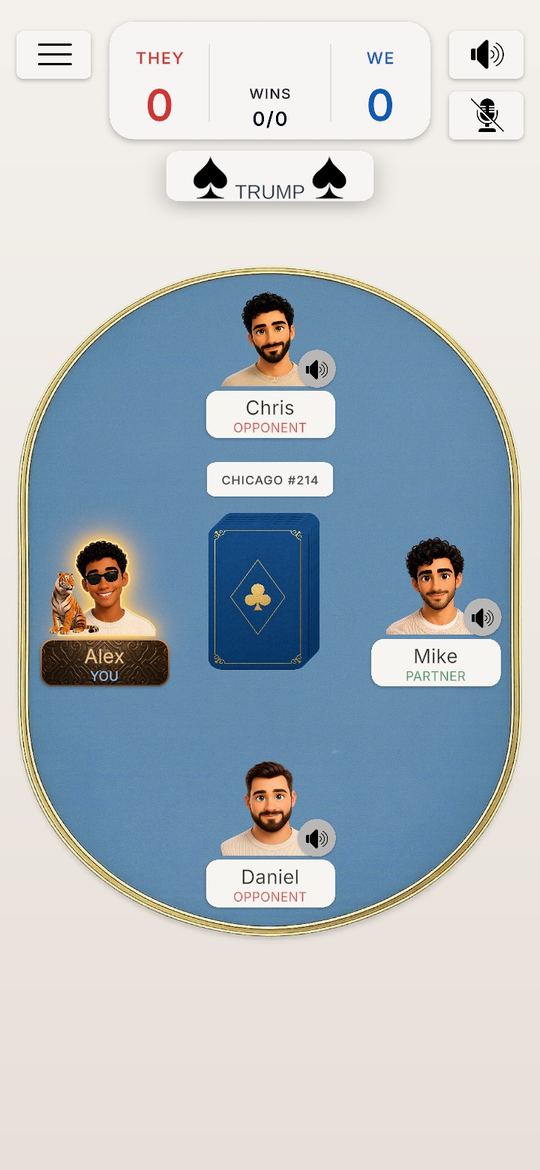
- The mic button is in the top right corner, under the sound button. Crossed out means your mic is off.
- Tap it. The first time, your phone will ask for microphone permission — allow it.
- The button looks normal now: your mic is on and the table can hear you.
- Tap it again to turn the mic off.
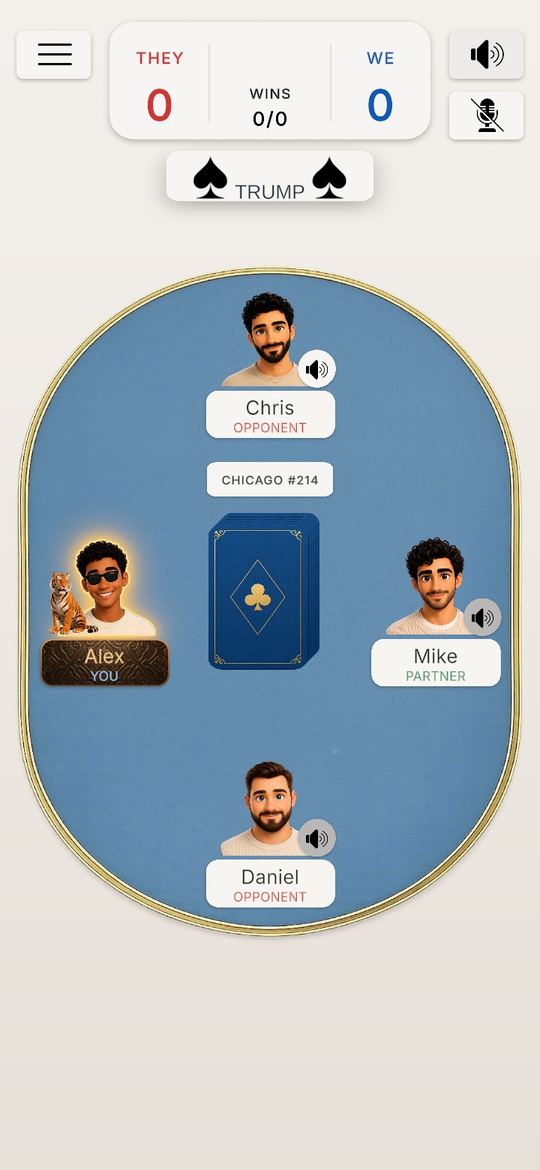
- Every player at the table has a speaker icon. When a player speaks, the circle under the icon turns white.
- Tap the icon of the player you don't want to hear.
- The speaker is crossed out: only you can't hear this player, everyone else hears them as usual.
- Tap it again and the sound comes back.
Sound button#
At an online table, the sound button cycles through three modes: sounds and voice → voice only → silent. In the menu and in Practice it's simply on/off. If you turn sound off in the menu, the online table will be in “silent” mode and you won't hear voices either.
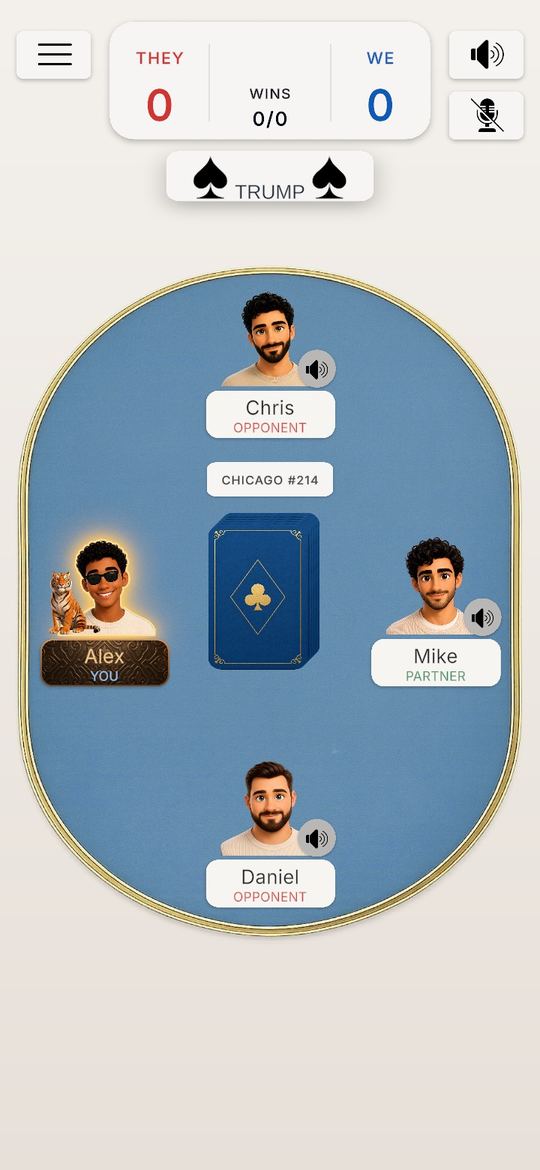
- The sound button is in the top right corner. Right now it's “sounds and voice”: you hear the game and the players.
- Tap it for “voice only”: game sounds are off, voices stay on.
- Tap again for “silent”: no game sounds and no voices.
- Tap once more to get back to “sounds and voice”.
Reports#
Tap a player's avatar at the table and choose Report. There are two reasons:
- swearing, insults: this player is muted for you right away;
- hints to partner.
The last 10 seconds of that player's voice are attached to the report. The voice is kept only in your phone's memory and is sent only with a report. The recording is stored for 30 days. The reported player isn't told about it.
You can report the same player once every 3 hours, and send up to 10 reports a day in total. Moderators review reports manually. Voice chat may be restricted for violations: then you can't speak, but you can still hear others. More in the “Help” section.
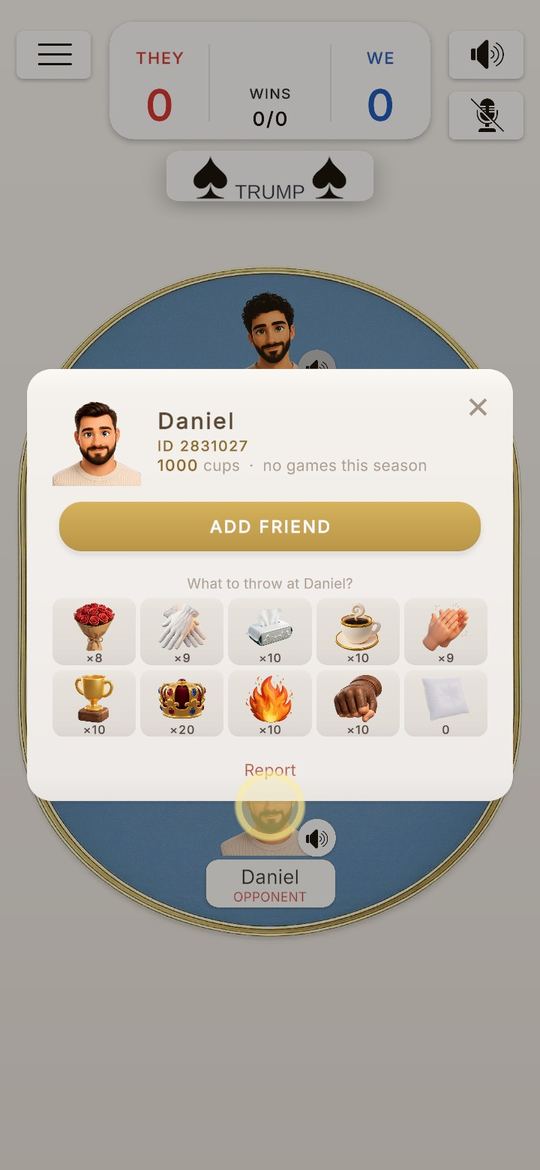
- Tap the player's avatar or name plate, not the speaker icon.
- The player card opens. At the bottom is “Report”.
- Tap “Report”.
- Choose a reason: “Swearing, insults” or “Hints to partner”.
- Here “Swearing, insults” is chosen: this kind of report mutes the player for you right away.
- “Report sent, player muted”. The game at the table doesn't stop.
If your connection drops#
- If the connection drops, the game tries to reconnect by itself: “Connection lost. Reconnecting...”, then “Returning to the table...”.
- While you're gone, your seat stays yours, and a bot plays for you. After you leave, it waits the full move time once, and then plays instantly.
- If you can't get back within 2 minutes, the game goes to the menu. If the match is still on, rejoin it from the lobby using the “Your table — rejoin” row, or in a ranked game, with the “Your match is on — rejoin” button.
- If you join the same room from another phone, the first one shows “You joined this room from another device”.
- If all players have left, the room is freed up after a minute.
The table froze, a card turned semi-transparent or you got kicked from the table? See the “Help” section.
If you minimize the app#
An online match continues while the app is minimized. Come back and you're right at the table, with no reconnecting, as long as the connection didn't drop.
- iPhone: the game stays active in the background as long as voice chat is connected at the table and the sound button isn't set to “silent”. In “silent” mode, the phone puts the game to sleep after half a minute, and it reconnects when you come back.
- Android: while you're at an online table, the game runs in the background, and the notifications show “You're at the table — come back to make your move”. On Android 13 and later, the game will ask for notification permission once.
- While the app is minimized, your move time runs as usual. If you don't make it in time, a bot plays, and you'll be marked “Away”.
- If the match ends while the app is minimized, the game goes to the menu by itself to free up the table. The same happens if you stay on the results screen for 3 minutes.
Landscape mode#
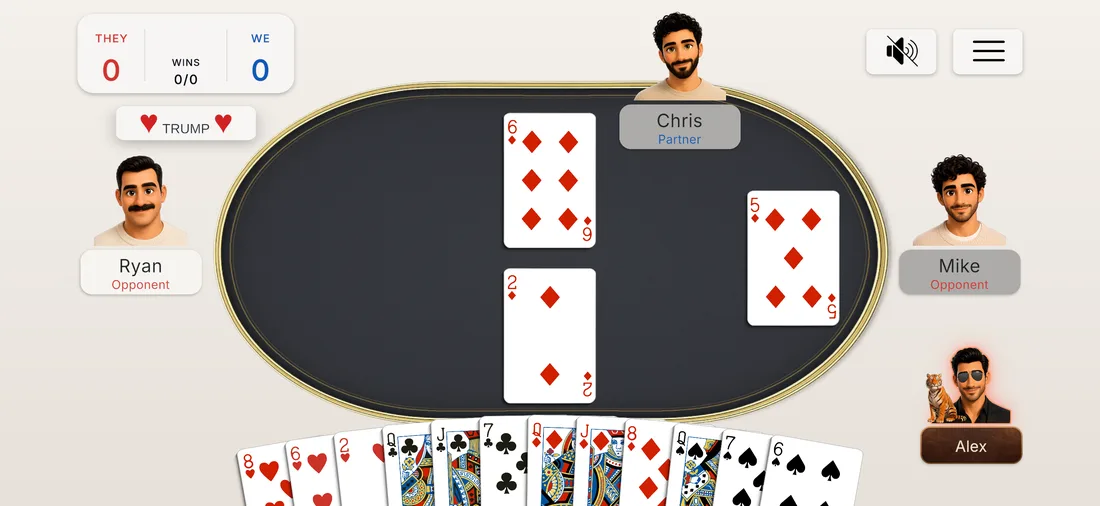
You can play at the table with your phone held sideways: the screen rotates by itself to match how you hold the phone. This works in the waiting room, in the game, in Practice and in the Tutorial. The menu, profile, shop and leaderboard stay in portrait, and game replays are landscape only.
Required updates#
To make sure everyone at the table plays by the same rules, the game checks its version at launch. If a required update is out, a window appears saying “A new version is available. Update to play online!” with a button to the App Store or Google Play. If the update closes the whole game, the window appears right at launch; if it closes only online play, the window appears when you try to play online. Without internet, the check isn't made.